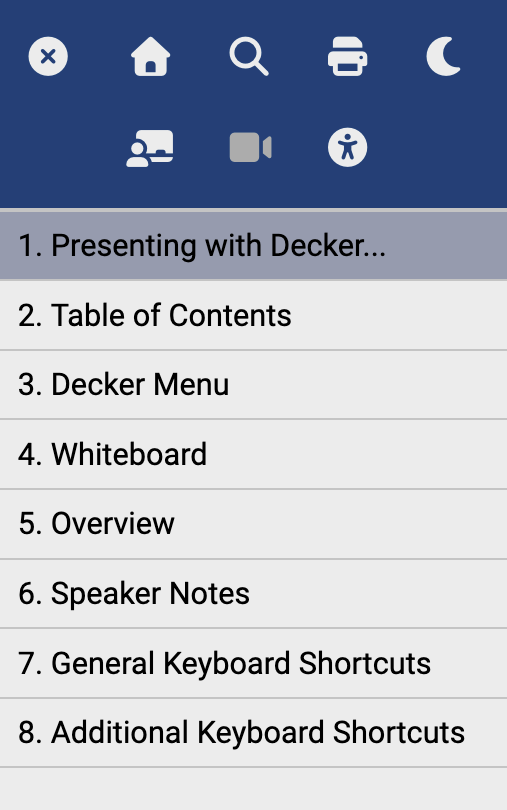
Click the icon in the upper corner of the slide for a list all slides in the presentation. Click to jump to a slide.
Write directly on slides using the Whiteboard. To activate, start presenter mode (type ppp or click ). This will show the whiteboard icon . Use that to open/close the menu for whiteboard tools.
| Icon | Tool | Description |
|---|---|---|
Download |
Save your annotations in a .json file to load into the presentation the next time. | |
Auto-Save |
Toggle automatic save on and off. | |
Grid |
Display a background grid on the whiteboard. | |
Add Page |
Add a slide for additional drawing space. Scroll down to reach added the new slide. | |
Undo |
Undo the last action. | |
Pen |
Change the cursor to a colored dot to draw on the slide. Click again to select a color. | |
Eraser |
Change the cursor to a grey circle to erase lines. | |
Laser |
Change the cursor to a red laser dot for improved visibility. |
The overview mode allows you to view an overview of your presentation, with your slides displayed as thumbnails. Press the ESC or O keys to toggle the overview mode on and off. While you’re in this mode, you can still navigate between slides.

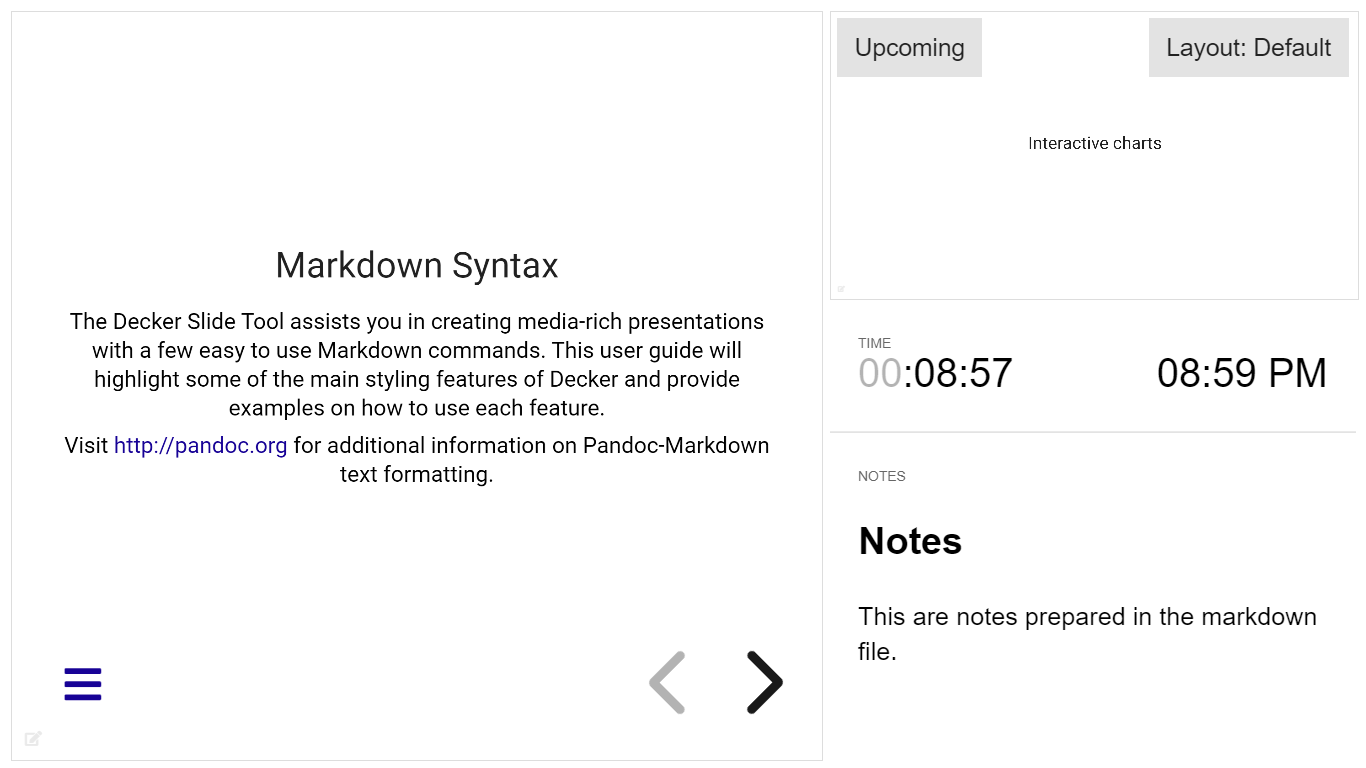
Press s to open the speaker view for the presentation. View the current and upcoming slides, speaker notes and a timer.
Add notes to a slide using the following syntax:
# Notes {.notes}
In this slide you see ...
→, ↓: Next slide←, ↑: Previous slideB, .: Pause (Blackout)F: FullscreenESC, O: Slide overview / Escape from full-screenR: Toggle screen recording modeS: Speaker notes viewV: Toggle cameraZZZ: Stop recording?: Show keyboard shortcutsPPP: Toggle presenter modeAAA: Toggle accessibility featuresctrl F: Open search barShift ←: First slideShift →: Last slideppp: Toggle presenter modedelete: Clear slideL: Toggle laser pointerW: Toggle whiteboard1 - 7: Change pen color8,9,0: Change pen radiusM: Toggle muteR: Toggle recordingZZZ: Stop recordingV: Toggle cameraC: Toggle QR codeA: Toggle pollT: Toggle results